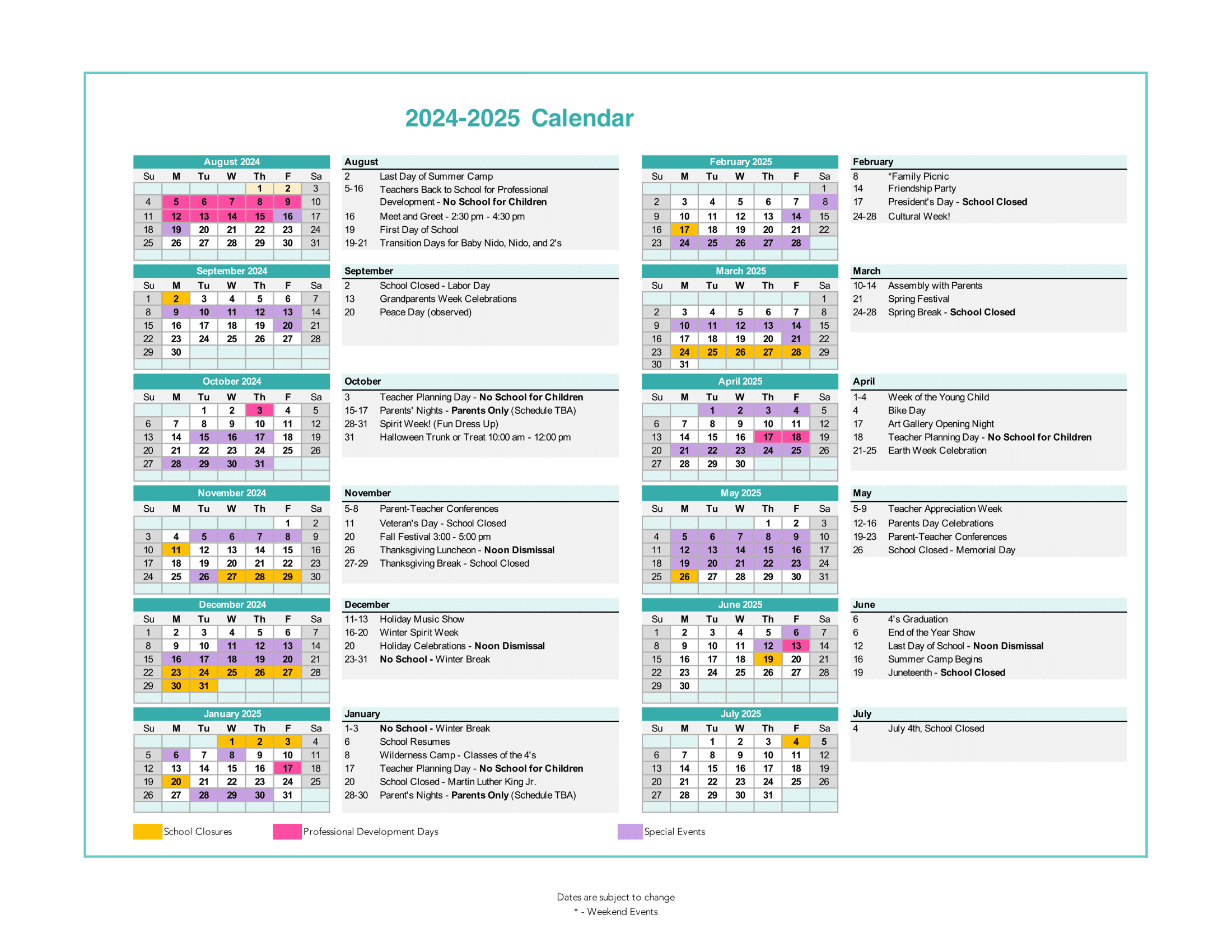
You photographed a flyer with 12 events on it. You open Google Lens, point at a date, and... it can create a calendar event!
Problem solved, right?
Not quite.
Google Lens can add events to your calendar. It works. But there's a catch that makes it nearly useless for the most common use case: schedules with multiple events.
Let me explain what Google Lens does well, where it falls short, and what to use instead.
What Google Lens Actually Does
Here's the honest breakdown of Google Lens's calendar feature:
What it can do:
- Read text from any image (OCR)
- Detect dates and times in that text
- Create a single calendar event from one detected date
- Add that event to Google Calendar
How it works:
- Open Google Lens (or use it in the Google app, Photos app, or Camera app)
- Point at text containing a date
- Tap the detected date
- Select "Create event"
- Review and save to Google Calendar
For a single event—a wedding invitation, a concert ticket, a doctor's appointment card—this works great. Quick scan, tap, done.
Where Google Lens Falls Short
The problem shows up the moment you have more than one event.
School calendar with 40 dates? You need to:
- Point at first date → Create event → Save
- Point at second date → Create event → Save
- Point at third date → Create event → Save
- ... repeat 37 more times
By event #5, you're wondering why you didn't just type them manually.
Here's what Google Lens can't do:
- Extract multiple events from one image
- Understand that a schedule is a list of related events
- Parse recurring patterns ("Every Tuesday, 3:30 PM")
- Batch add events to your calendar
- Handle complex layouts (tables, columns, grids)
Google Lens was built for quick lookups—translate a sign, identify a product, scan a QR code. It was never designed to parse a dense school calendar and turn it into 40 separate calendar entries.
The Real Test: School Flyer with 15 Events
I tested both approaches with a typical school flyer:
Google Lens approach:
- Time to add all 15 events: ~12 minutes
- Workflow: Point, tap, create, save, repeat 15 times
- Missed events: 2 (dates I accidentally skipped)
- Frustration level: High
Calendara approach:
- Time to add all 15 events: ~45 seconds
- Workflow: Upload photo, review extracted events, save all
- Missed events: 0 (AI caught everything)
- Frustration level: None
For a single event, Google Lens wins on convenience. For anything more than 3-4 events, the one-at-a-time workflow kills it.
When Google Lens Makes Sense
Use Google Lens when you have:
- One event (birthday party invite, concert poster)
- A clear, isolated date (appointment card)
- No other tools handy (quick and dirty works)
Google Lens is free, it's already on your phone, and for simple cases it works fine. No complaints there.
When You Need Something Better
Use a dedicated photo-to-calendar tool when you have:
- School calendars (15-40 events per semester)
- Sports schedules (game times, practices, tournaments)
- Conference agendas (multi-day event schedules)
- Work schedules (shift calendars, on-call rotations)
- Activity calendars (dance, music, camp sessions)
Basically: any schedule where typing events manually would take more than 2 minutes.
How Calendara Handles This
Calendara was built specifically for multi-event extraction. Here's the difference:
Step 1: Upload a photo of any schedule
Step 2: AI extracts ALL events—titles, dates, times, locations—in one pass
Step 3: Review the extracted events (edit if needed)
Step 4: Save everything to your calendar with one click
What makes this different from Google Lens:
- One photo = all events extracted (not one-by-one)
- Handles tables, columns, and complex layouts
- Understands context ("Early Dismissal" vs "No School" vs "Half Day")
- Detects recurring patterns automatically
- Syncs directly to Google Calendar
The AI is trained on thousands of school calendars, sports schedules, and event flyers. It knows what a schedule looks like and how to parse it.
Put This Guide Into Practice
Download Calendara and start organizing your family calendar today.
The Math: Time Saved
Let's be real about the numbers.
Scenario: School sends home 3 calendars per year, each with ~30 events.
Google Lens approach:
- 30 events × 45 seconds each = 22.5 minutes per calendar
- 3 calendars × 22.5 minutes = 67.5 minutes per year
- Plus: missed events, duplicate entries, wrong times from rushing
Calendara approach:
- 30 seconds to upload + 30 seconds to review = 1 minute per calendar
- 3 calendars × 1 minute = 3 minutes per year
Time saved: 64 minutes per year on school calendars alone.
Now add sports schedules, activity calendars, and work shifts. The savings compound.
But Isn't Google Lens Free?
Yes. Google Lens costs $0.
But your time isn't free. If adding 30 events via Google Lens takes 22 minutes, and you value your time at even $15/hour, that's $5.50 worth of time per calendar.
Calendara gives new families a 7-day full-access preview, then $4.99/mo or $39.99/yr. You'll save time from day one compared to Google Lens's one-at-a-time workflow.
And unlike Google Lens, Calendara also gives you:
- Shared family calendars
- Two-way Google Calendar sync
- Color-coded family members
- Shared shopping lists and to-dos, with photo-to-list
Google Lens is a feature. Calendara is a solution.
See it work on your own flyer
Take a photo of any schedule — camp flyer, practice calendar, school newsletter — and Calendara turns it into shared, color-coded events for the whole family.
How to Actually Add Events from Photos
If you landed here searching for "google lens add to calendar," here's my honest recommendation:
For 1-2 events: Use Google Lens. It's free, it works, you're done.
For 3+ events: Use Calendara. The one-by-one workflow isn't worth your time.
For recurring schedules: Definitely use Calendara. Google Lens has no concept of "every Tuesday at 3:30 PM."
Try It Yourself
Got a schedule sitting in your camera roll? The one you photographed "to add later" but never did?
Upload it to Calendara. See how many events get extracted. I bet it's more than you expected—and I bet it takes less than 30 seconds.
Put This Guide Into Practice
Download Calendara and start organizing your family calendar today.
Questions about photo-to-calendar? Email gustavo@usecalendara.com — I read everything and usually respond within a day.