Take a photo of the schedule, share one link, and every parent has it. In Calendara, a photo of a flyer or PDF becomes events in a calendar named for the team or class. One tap on Share gives you a link. Paste it in the group chat, and parents add the calendar to Google, Apple or Outlook in one tap. No app, no account.
This guide is for the team parent, the class parent, the PTA volunteer and the coach who always ends up answering "what time is it again?"
The problem: one schedule, thirty parents
A coach sends a PDF. Four parents lose it. Two ask for it again. One types the games into her calendar and gets a time wrong. Then the field changes, and the group chat fills up with "wait, which field?"
The fix is simple. The schedule lives in one place, and every parent's calendar reads from it. When it changes, you change it once.
How do I share a team or class schedule in 5 steps?
The Bennetts' son Noah plays on the "Lions U10" soccer team. Maya is the team parent. Here is what she does.
- Make a calendar for the team. On the Calendar tab, tap the sliders button, then +, and name it "Lions U10" or "Room 12". Do this first, because the import screen saves into a calendar you already have.
- Take a photo of the flyer, or upload the PDF. Calendara reads the dates, times and places and drafts the events. Our photo-to-calendar guide shows what it can read.
- Review the draft and save it to the team calendar. Fix anything it misread, then pick "Lions U10" next to Adding to and save.
- Tap Share. When Calendara saves 3 or more events, a card on the Saved! screen asks Share this schedule with the team. Tap Share. It shows once per calendar.
- Paste the link in the team group chat. The message is ready: Here's the "Lions U10" schedule, followed by the link.
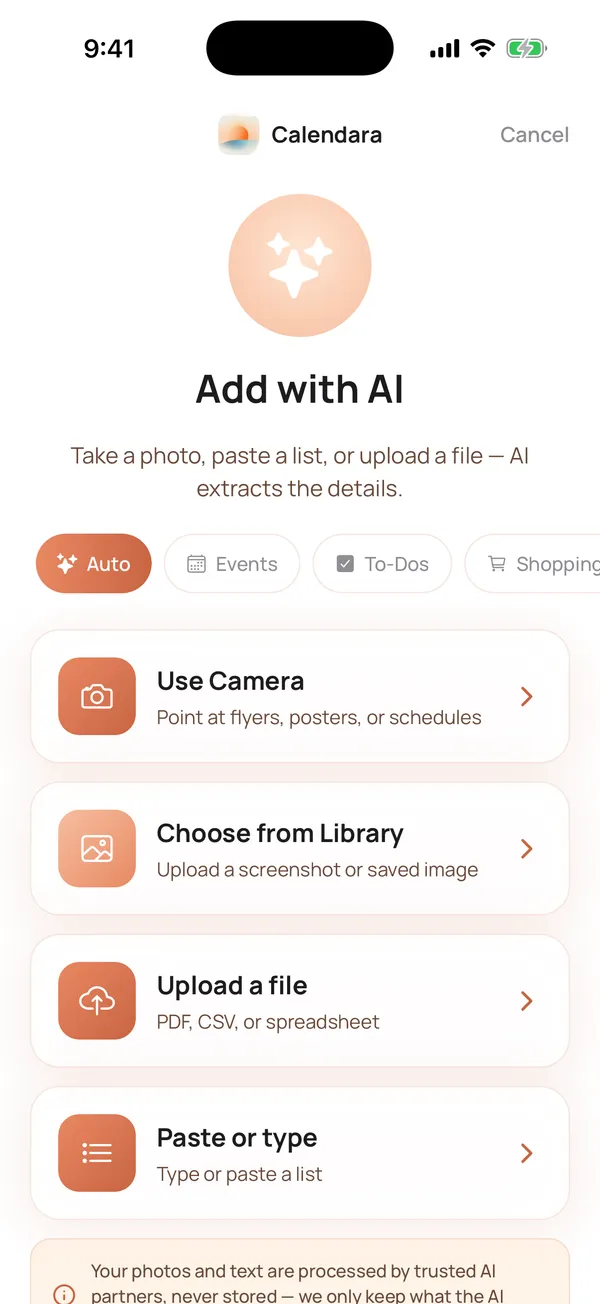
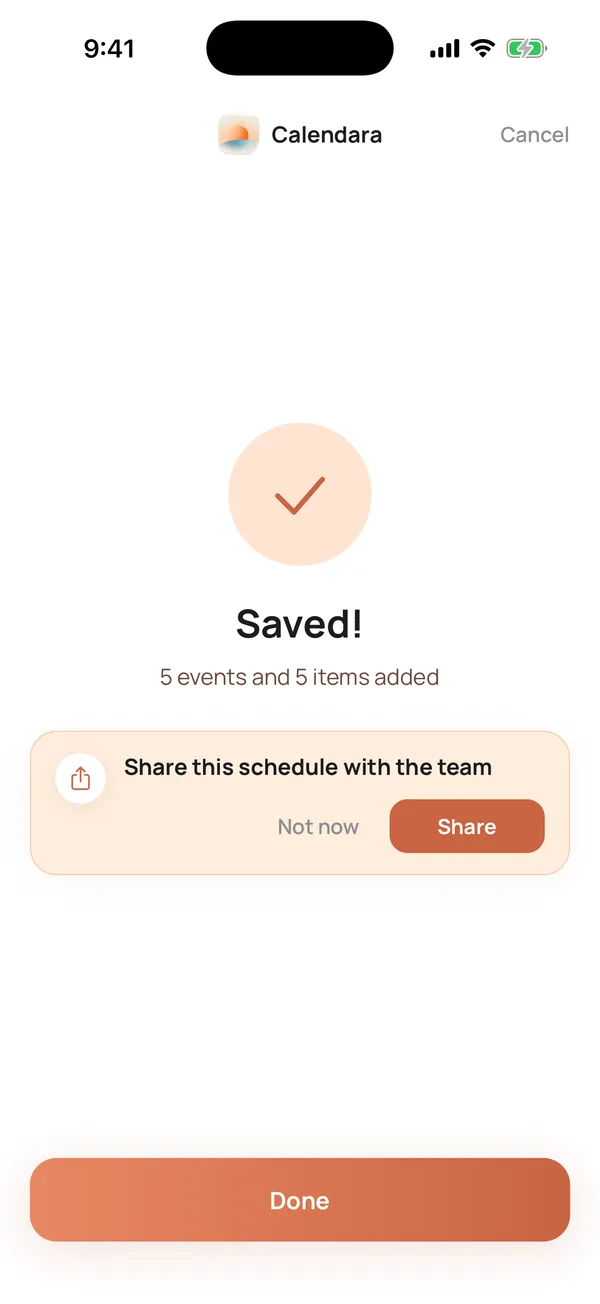
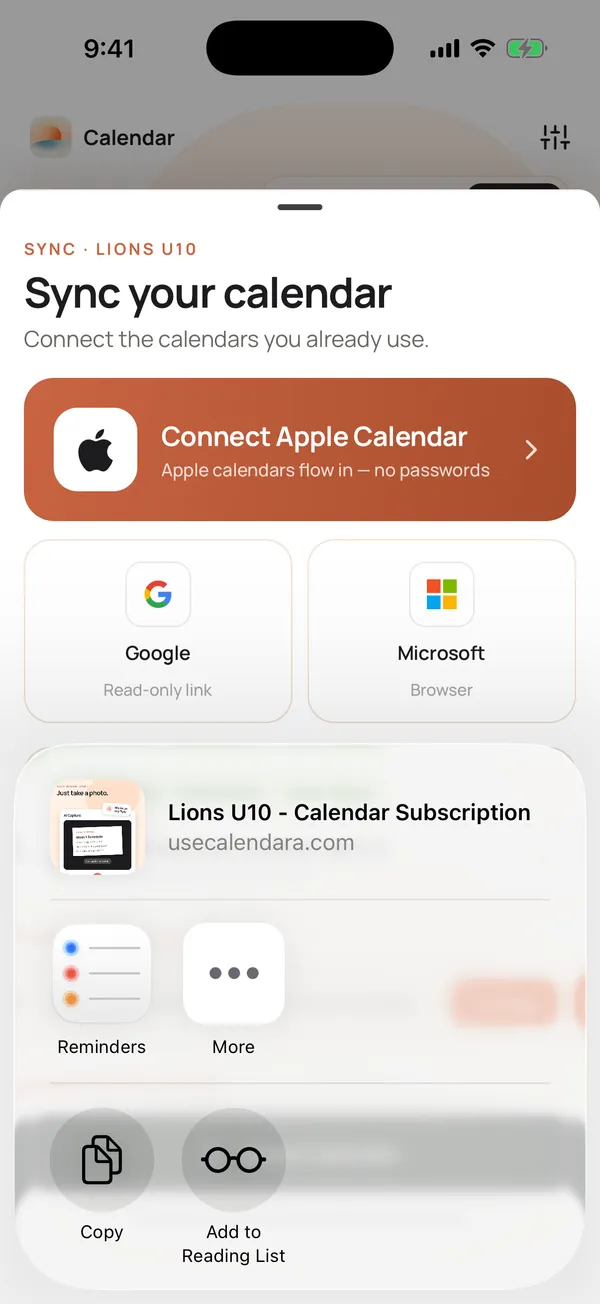
Missed the card? Open the Calendar tab, tap the sliders button, tap the share icon on the calendar, then tap Share Calendar. The full steps are in our guide to sharing a calendar with a link.
What do the other parents see?
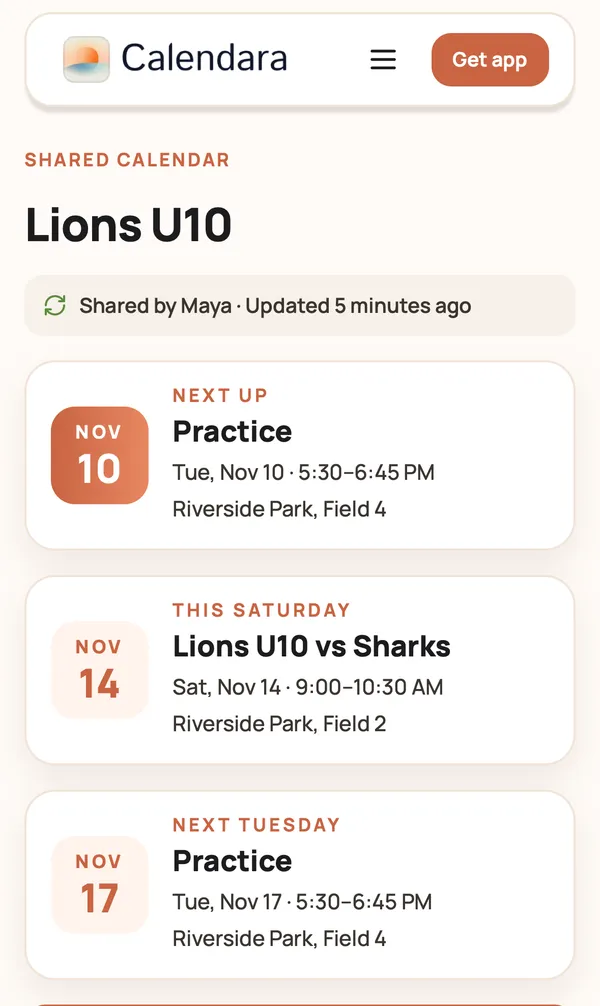
A clean page, not a login screen. It has:
- The calendar name, like "Lions U10".
- "Shared by Maya · Updated 2 hours ago", so everyone knows it is current.
- Next up: the next 3 games or events.
- The full schedule, with past events folded under Earlier this season.
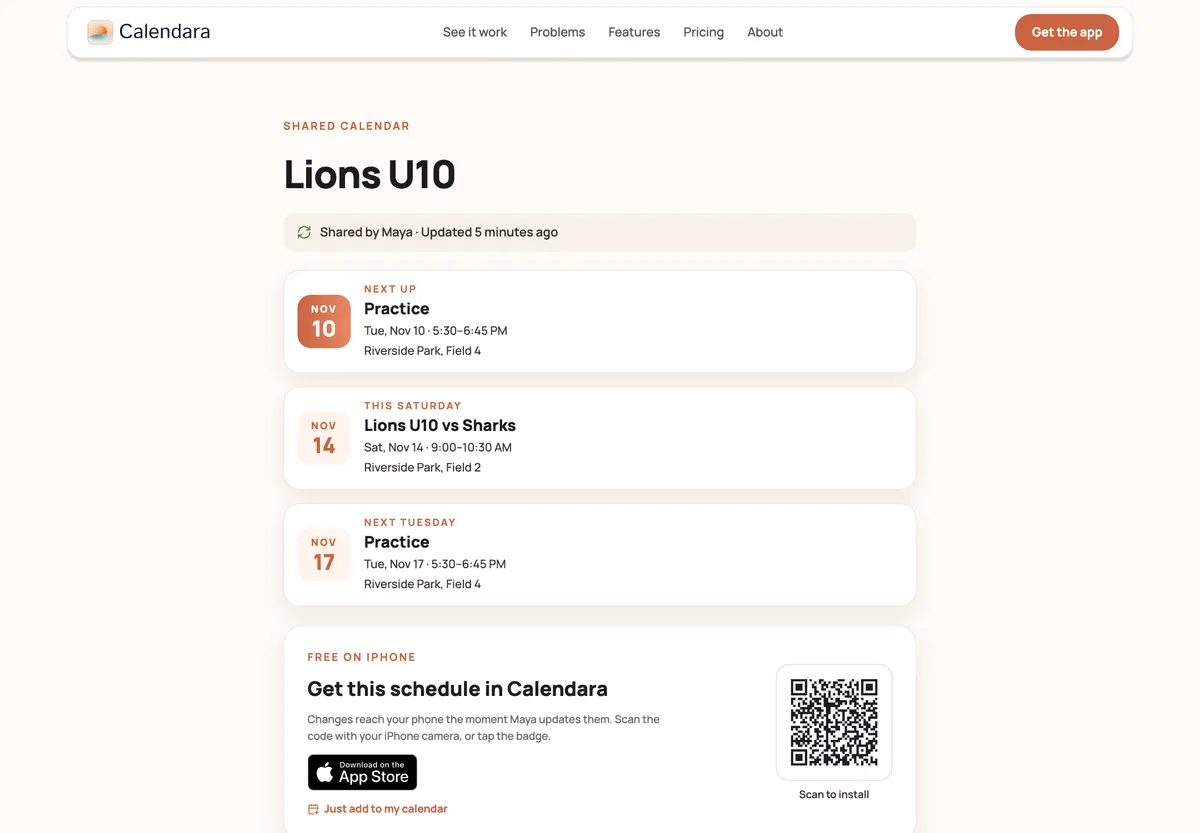
How do parents add the schedule to their own calendar?
Each parent picks the button that fits their phone. It takes one tap.
- On iPhone: tap Just add to my calendar. The schedule appears in Apple Calendar.
- On Google Calendar: tap Add to Google Calendar.
- On Outlook or another calendar app: tap Outlook or another app? Copy the calendar link, then add that link to Outlook as a read-only calendar.
Parents do not need Calendara. They can use any phone or computer. You are the only one who needs the app, and you need it on an iPhone.
What happens when the coach moves a game?
This is the part that saves the most time. The coach texts "Saturday's game is now 10:30." You open the game in Calendara and change the time once. Every parent who added the calendar gets the new time on their own calendar by themselves.
Apple Calendar is usually quick. Google Calendar refreshes subscribed calendars on its own schedule, usually within a few hours and sometimes up to a day. For a same-day change, add a short text in the chat too: "Time changed, check your calendar."
Tips for a team parent or class parent
- Make one calendar per team or class. Share only that calendar. Parents see the Lions U10 schedule and nothing about your family's dentist visit.
- Name it clearly. "Lions U10" beats "Soccer". Parents may follow three teams.
- Share early. Send the link the day the schedule arrives, before the first "when is it?" text.
- Pin the message. Pin the link in the group chat so late joiners find it.
- Handle tournaments separately. Add a tournament bracket to the same calendar when it is final, or share a second calendar for it.
Good to know
- The link is read-only. Parents can see events, but only you change them.
- The link keeps updating while you have Calendara Pro or your 7-day free preview. If that lapses, the page tells parents the calendar stopped updating.
- Anyone with the link can see the events. Share it in the team chat, not on a public page.
- Your phone does the editing. Calendara is an iPhone app. If another parent spots a change, they text you and you update it once.
Planning the whole season? See how to add a sports schedule to your calendar. Sharing a school year calendar instead? Read how to add a school calendar to Google Calendar.
Quick checklist
- One calendar per team or class
- Events reviewed and saved
- Link sent in the group chat and pinned
- Parents know which button to tap
- You edit changes once, in Calendara
Put This Guide Into Practice
Download Calendara and start organizing your family calendar today.
Running a team or a classroom? Tell us what would help: hello@usecalendara.com.