
Yes, you can add a photo to a calendar event on iPhone, but only as an attachment. Open the event, tap Edit, tap Add attachment, and pick the photo from Files. If the photo is a flyer or schedule, though, you probably want its dates on your calendar, not a picture to open later.
Reading this on a computer? Calendara is an iPhone app. Open this page on your phone, or get the download link and scan the code.
Put This Guide Into Practice
Download Calendara and start organizing your family calendar today.
How do I add a photo to a calendar event on iPhone?
Apple's iPhone User Guide says you can "add an attachment to a Calendar event to share with invitees". The steps it gives:
- Save the photo to Files. In Photos, open the picture, tap Share, then Save to Files. Apple's guide describes the Files app as the picker, so this is the simplest route.
- Open the event and tap Edit. It sits near the top right of the event.
- Tap Add attachment. The Files app opens and shows your recent files.
- Pick the photo, then tap Done.
As of November 2026, we confirmed these steps in Apple's iOS 15 guide. Menus move between iOS versions, so if your screen looks different, open an event, tap Edit, and look through the event details for the attachment row.
What you get is a file attached to the event. It is handy for a ticket, a map, or a permission slip you want one tap away from the event. It does not read the photo, and it does not create any events.
Can I add a photo to an Apple Calendar event?
Yes, by the same route. Apple Calendar on iPhone has an attachment row, not a "picture" field. The photo goes in as a file.
Two things to know before you rely on it:
- It is a file, not a picture on the event. The photo is attached as a file you open from the event.
- It does not extract anything. If the photo shows a school flyer with eleven dates, the event still holds only the one date you typed.
Our photo to Apple Calendar guide covers the other built-in option, Live Text, which turns one date at a time into an event.
What if I want the dates in the photo, not the photo?
That is the usual reason people search for this. A parent takes a photo of the soccer schedule "so I don't forget", then wants it on the calendar. Attaching the photo to one event just moves the problem: the dates are still stuck in a picture.
| What you want | Best way on iPhone |
|---|---|
| One document handy on one event | Add attachment (Files) |
| One date from a photo | Live Text, then Create Event |
| Every date on a flyer, schedule or PDF | Calendara reads the photo and creates all the events |
See it work on your own flyer
Take a photo of any schedule — camp flyer, practice calendar, school newsletter — and Calendara turns it into shared, color-coded events for the whole family.
Can Calendara attach a photo to an event?
No, and it does not try to. Calendara does the other job: it turns the photo into the events themselves.
- Take a photo, choose one from your library, or upload a PDF. Screenshots and pasted text work too.
- AI reads every date. It finds the title, date, time, location and repeating patterns.
- You review the events before anything is saved. Fix a time, assign each event to the right family member, remove what you don't want.
- Save. Everyone you've invited sees the events on their own iPhone.
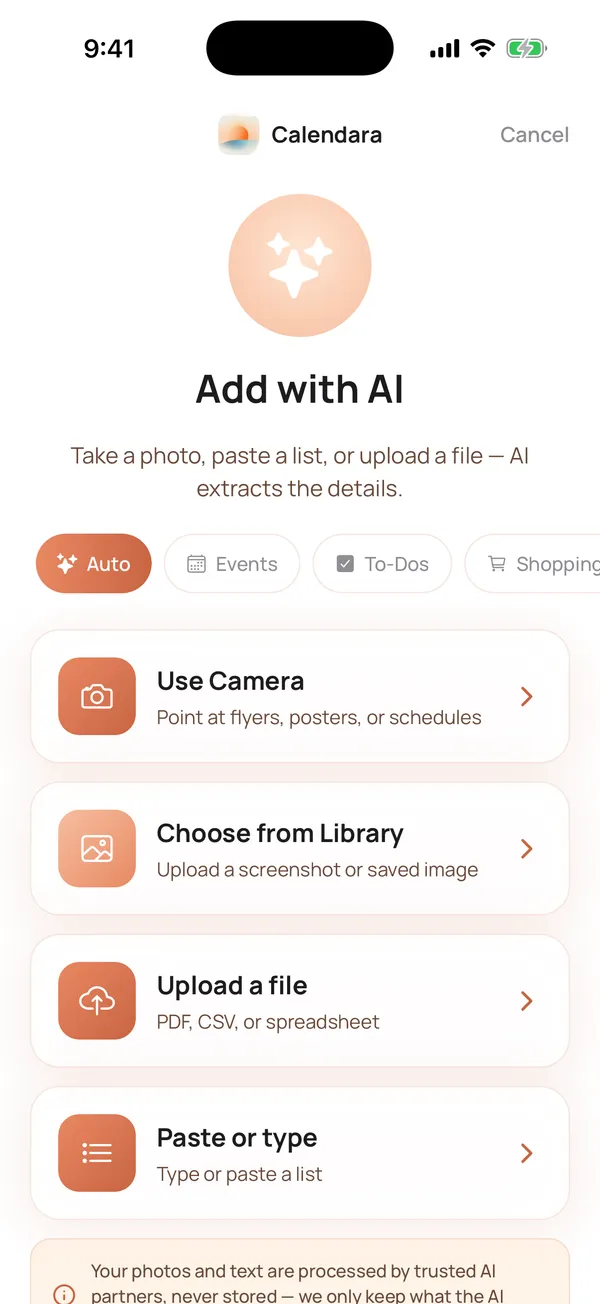
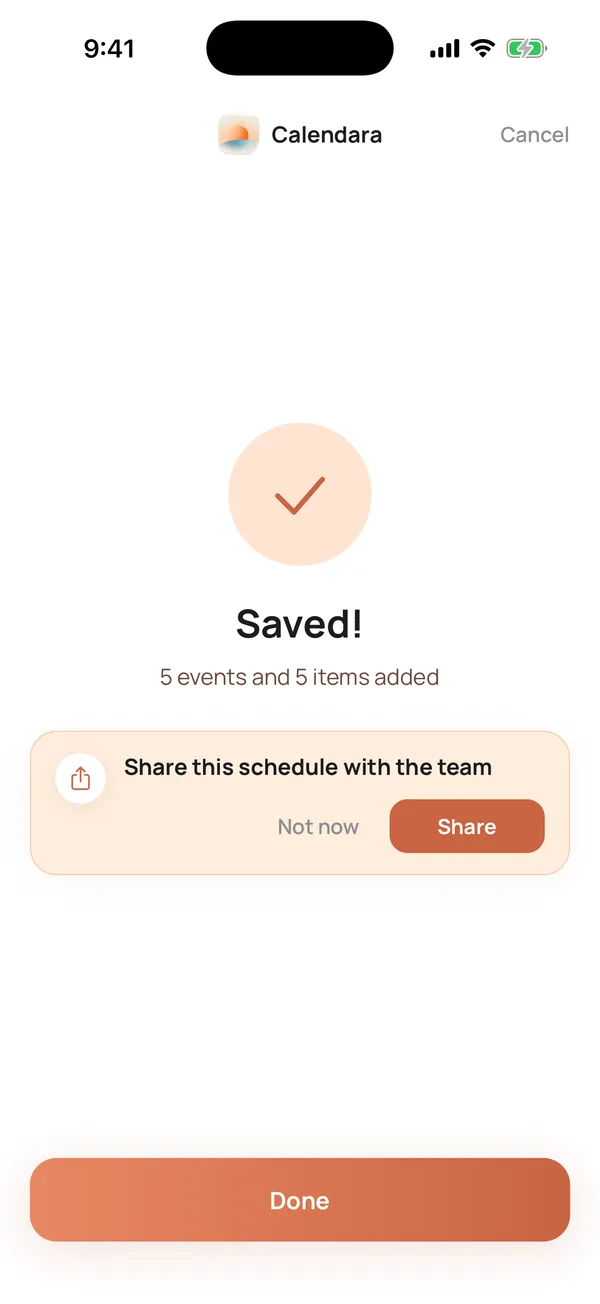
To see the events on your iPhone's own calendar, tap Connect Apple Calendar in Calendara's settings. A "Calendara" calendar appears in Apple Calendar on that iPhone. Sync runs when Calendara is open on the connected iPhone. Calendara also syncs two-way with Google Calendar. Our photo to calendar guide shows a real flyer going through it.
New families get a 7-day free preview, then $4.99/mo or $39.99/yr.
Which should I use: attach the photo or turn it into events?
- Attach the photo when you need the document itself: a boarding pass, a ticket, a map to the party.
- Turn it into events when the photo is a schedule: a school calendar, a sports season, a camp flyer, a handwritten note. For school flyers, see how to add a school calendar to your phone.
- Do both if you like: attach the original in Apple Calendar for reference, and keep the extracted events in Calendara.
Bottom line
Apple Calendar on iPhone can hold a photo as an attachment, through Add attachment and the Files app. It cannot read the photo for you. For a flyer, schedule or PDF, photograph it in Calendara and review the events it finds. A 7-day free preview, then $4.99/mo or $39.99/yr.
Put This Guide Into Practice
Download Calendara and start organizing your family calendar today.