To share a list with your family in Calendara, open it and tap Share. A private list says Only you can see this, with a Share button next to it. Tap it, confirm, and everyone in your family sees the list on their own iPhone. Changes show up live, and to-dos can be assigned to family members.
This guide covers the steps, what changes when you share, and what to do for people outside your family.
How do I share a list with my family?
The Bennett family has a list called "Weekend to-dos". Maya wants Sam and the kids to see it. Here is what she does.
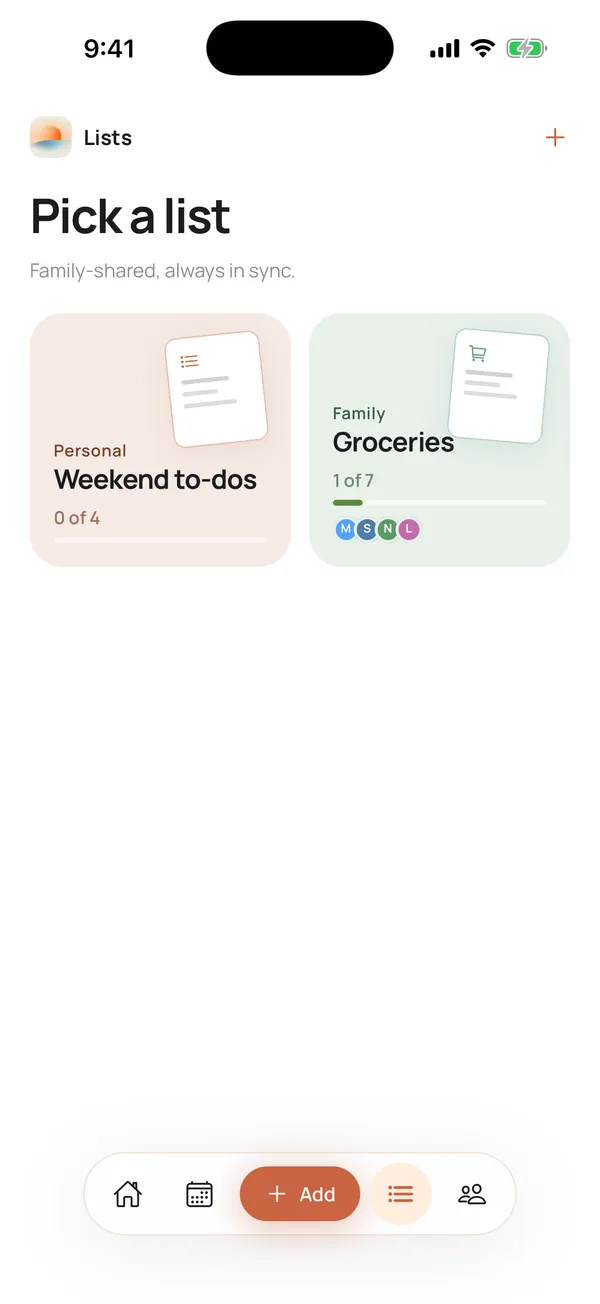
- Open the Lists tab.
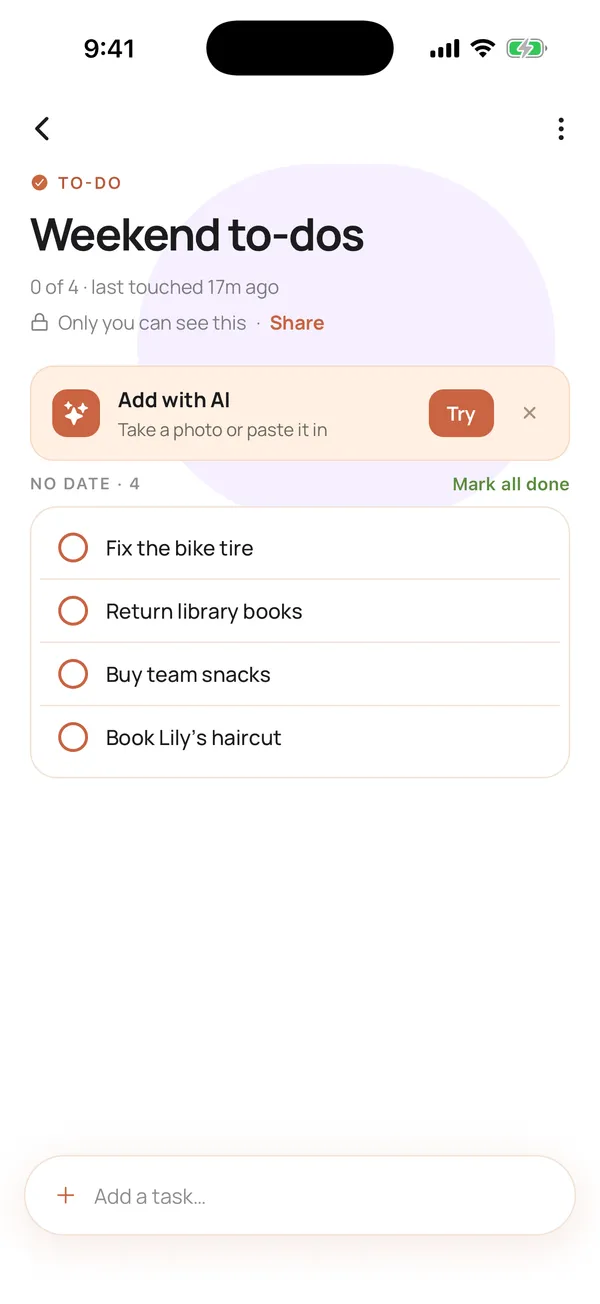
- Open the list you want to share.
- A private list shows Only you can see this · Share. Tap Share. You can also tap the three dots (⋯) and choose Share with Bennett family.
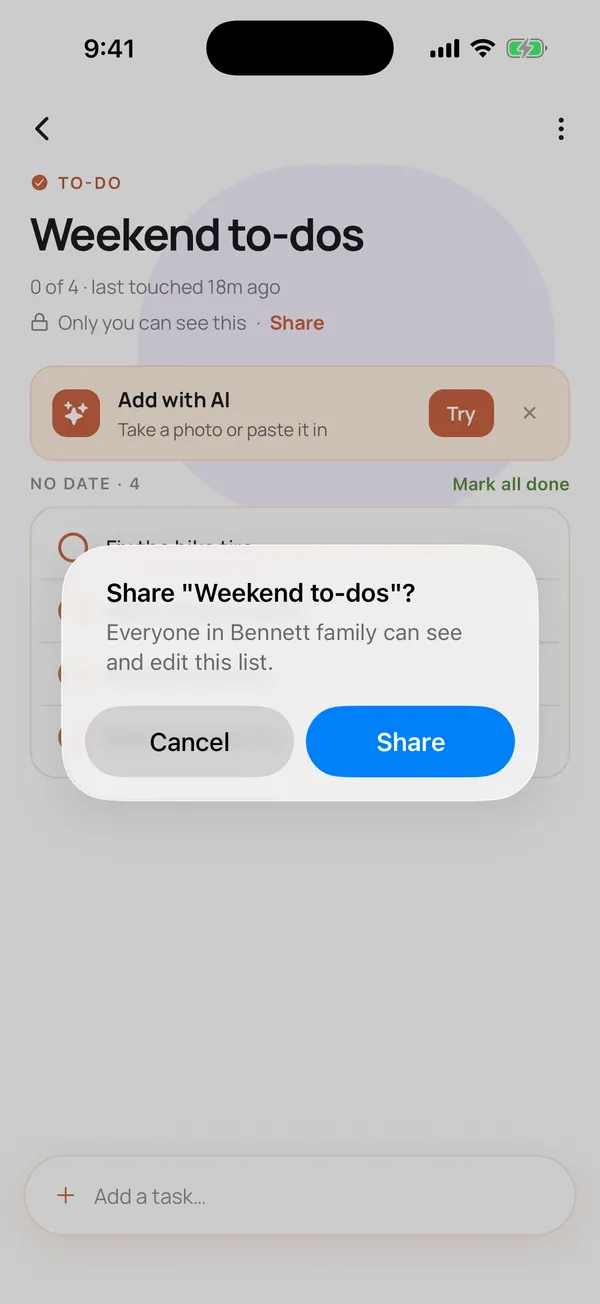
- Confirm: Share "Weekend to-dos"? It reads: "Everyone in Bennett family can see and edit this list."
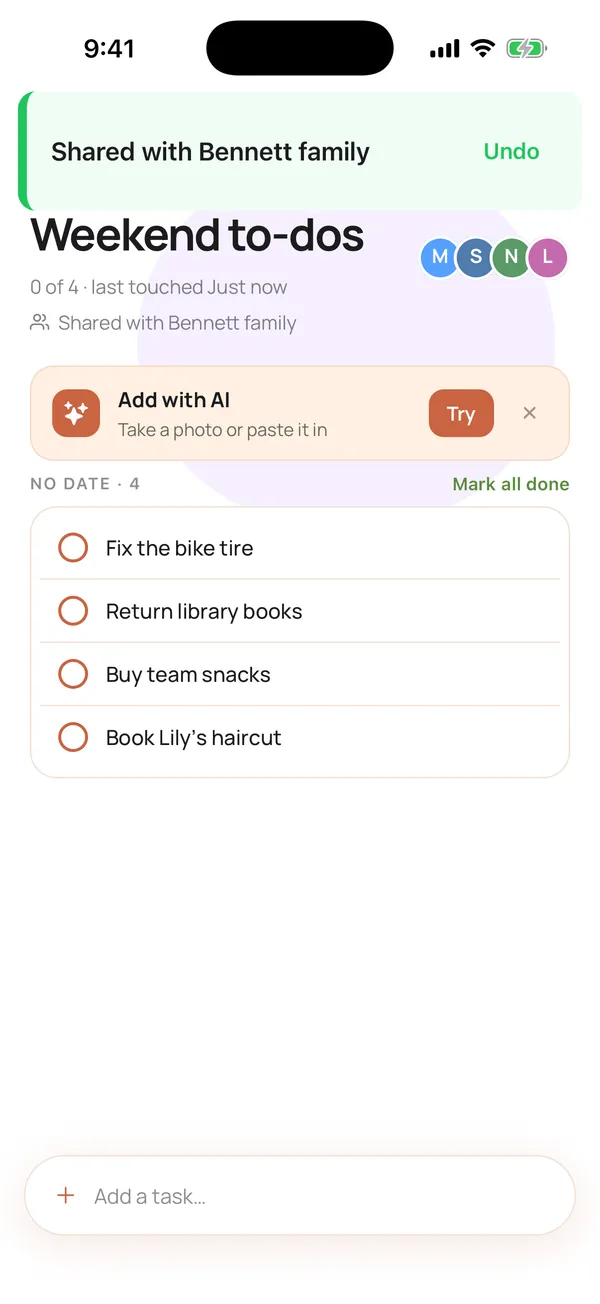
- A toast says Shared with Bennett family. You are done.
Are new lists shared by default?
Yes. When you create a new list, the switch Share with Bennett family is on, and the note says Everyone can see and edit. A new list is shared from the start.
Turn the switch off for a list that should stay private, like a gift list. You can tap Share later when you are ready.
What do my family members see?
- The same list, live. When Sam checks off milk at the store, Maya sees it checked.
- Everyone can edit. Anyone in the family can add items, check them off and change them.
- Assigned to-dos. To-do items can be assigned to a family member. "Pack the soccer bag" goes to Noah, and "Book the dentist" goes to Maya.
This is why a shared list beats a text thread. There is one list, and nobody has to scroll up to find the last version.
What if I do not have a family set up yet?
You can still tap Share. If you have no family yet, Calendara takes you to the Family tab to invite someone.
- Open the Family tab.
- Tap Invite a member.
- Send a Share link, show a QR code or send an Email.
- When they join, share the list.
Calendara is an iPhone app. Family members who join the app need an iPhone. Here is more on getting everyone into your family.
How do I share with someone outside my family?
This is the one thing to know. Lists are shared with family members inside the app. Calendara does not create a link for a list, so a grandparent without the app, a neighbor or a babysitter cannot open one on the web.
Here is what works instead:
- Invite them to your family if they have an iPhone and should add and check things off.
- Share a calendar by link if they only need to see dates. For example, share the camp schedule or the party plan. No account is needed. See how to share a calendar with a link.
- Send the list in a message for a one-time errand. Copy the items into a text.
Fill a list from a photo
You do not have to type the list. Take a photo of a handwritten grocery list, a recipe card or a school supply list, and Calendara drafts the items. You review the draft, save it and share the list with your family.
- Photo to shopping list covers grocery, recipe and school supply lists.
- Photo to to-do list covers chore charts, packing lists and homework sheets.
Make lists part of your week
A shared list works best with a routine. Many families look at the lists in a short Sunday check-in. Our weekly family check-in shows how to do it in 15 minutes.
Good to know
- Everyone in the family can edit a shared list. If you want only one person to change a list, keep it private and tell the others what is on it.
- Sharing is per list. You choose which lists the family sees.
- Family members need the app. Everyone who joins your family uses Calendara on an iPhone.
- Your 7-day free preview covers it. Lists, sharing and photo import are part of the full-access preview, and one subscription covers everyone in the family afterwards.
Quick checklist
- The list is open on the Lists tab
- You tapped Share (or ⋯ then Share with Bennett family)
- You saw the toast Shared with Bennett family
- Family members are in the app, invited from the Family tab
- To-dos are assigned to the right family member
Put This Guide Into Practice
Download Calendara and start organizing your family calendar today.
Questions about lists? We read everything: hello@usecalendara.com.